

How I Streamlined My Planning and Task Management for the New Year
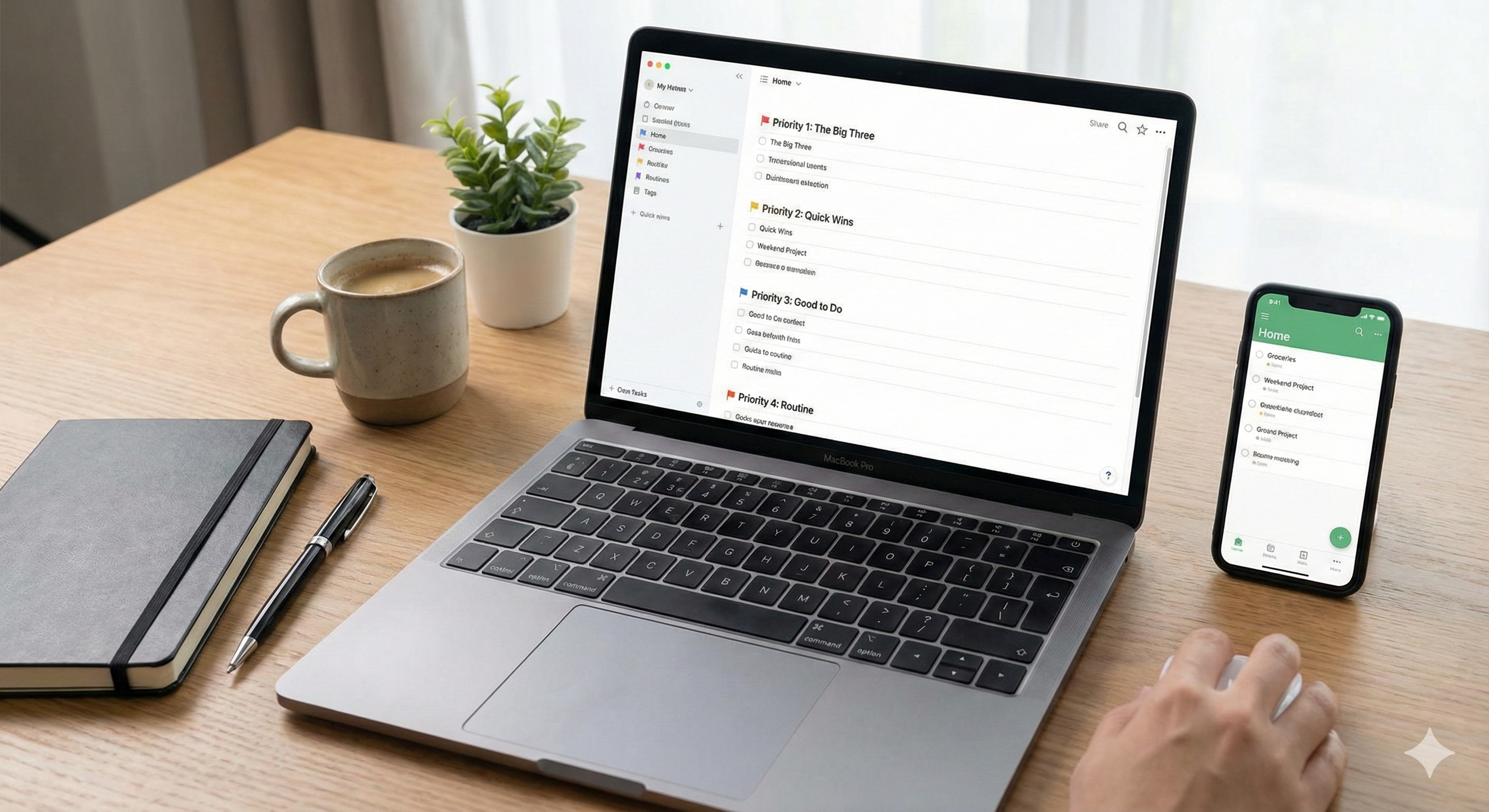
As part of getting ready for the new year, I always encourage everybody to step back and reflect. It is the perfect time to look at your processes and ask: What is working? What is not working?
Earlier this year, I took that step back myself. As I evaluated my workflow, especially as I had changed the types of work I was doing, it became evident that my system needed a shift. I realized that the way I was organizing my day was creating friction rather than momentum.
Here are the specific changes I have made to my daily planning and task management to remove that friction.
Identifying the Friction: Duplication
In the past, I used a regular digital task manager. I have written about Todoist and Apple Reminders before, and I still use those. But previously, I paired those apps with a digital planner.
Think of this digital planner as the modern version of the old-school paper planner. I used it on my iPad. I would take the Pencil, write in there manually, and transfer tasks from my digital task manager onto my planner for the day.
I tried to do this every morning to set my intention. But as I reflected on this process, I realized something important. I was duplicating a lot of extra work.
Writing things down twice was not helping me think things through any better than I could if they were just sitting in my task manager. It was creating unnecessary friction. In most cases, when a task comes to mind, I simply set a reminder by dictating or typing it directly into my inbox in Todoist or Apple Reminders.
So, I asked myself a simple question. Why don't I just set up my to-do list a little differently to act as the planner itself?
The New System: Redefining Priorities
I decided to eliminate the manual handwriting component and streamline everything into Todoist.
Todoist allows you to flag tasks with priority levels: Priority 1, Priority 2, Priority 3, and Priority 4. I was already using these loosely, but I decided to map these flags to the specific categories of work that I used to write out in my planner.
Here is how I organize it now.
Priority 1: The Big Three
In my written planner, I always had a section for my "Big Three." These are the three things that absolutely needed to get done that day.
Now, I simply mark these as Priority 1 (P1) in Todoist.
The Rule: I never have more than three. Sometimes I only have one or two things for the day, and that is fine.
The Workflow: I number them 1, 2, and 3 in the task title so they show up in order at the top of my list. I do not worry too much about exactly which one gets done first or second, as long as these remain the anchor of my day.
Priority 2: The Quick Three
I used to have a section in my planner for "Quick Wins," and now these are my Priority 2 (P2) tasks. I use these to build momentum first thing in the morning.
These are typically very simple tasks like sending an email, following up on a request, or reviewing a document. They are quick things that need to get done. They do not necessarily have to be done first thing, but they are great momentum starters. I knock these out to get the ball rolling before diving into my first "Big Three" item.
Again, I try to stay pretty disciplined in not having more than three. Sometimes I have a few more, or sometimes less, and I am okay with that.
Priority 3: The "Good to Do"
My Priority 3 (P3) tasks are the other items on the list that aren't necessarily urgent for the day but would be good if I got them done. They are the pieces that move projects forward but will not break the day if they slide to tomorrow.
Priority 4: Routine Maintenance
Finally, the Priority 4 (P4) tasks, or those with no priority flag, are the reminders and recurring tasks that happen every day. These do not fall into the Big Three or Quick Three.
An example is a reminder at the end of each day to close out and review my email to make sure I am ready for the next day. It sits at the bottom of the list. I know it is always going to be there. As I am working through my list, I see it. I check it off, and then it just resets for the next day.
This structure allows me to see my Big Three right at the top, followed immediately by my momentum-building Quick Three, with everything else cascading below.
Creating Boundaries: Work vs. Home
The other major change I made this year is strictly defining where different types of tasks live. I use both Todoist and Apple Reminders, but I use them for completely different purposes.
Todoist is for Work. I keep all my work-related items in Todoist. I do not break things into individual projects too much within the app. I have three main groups related to different parts of my business, but for the most part, I am working from a single list during the workday.
Apple Reminders is for Home. I split all my home and personal tasks out to Apple Reminders.
Shared Lists: I already use Apple Reminders for lists shared with my wife, so the app is already on my phone.
Weekend Projects: If there is a project I want to get done in the yard or stuff around the house, that goes into Apple Reminders.
The benefit of this split is mental clarity. When I am in Todoist, usually during the week, I am focused on work. On nights or weekends, I am typically looking at Apple Reminders. I am not looking at Todoist over the weekend, so I am not constantly reminded of business tasks when I am trying to relax or do yard work.
It has really helped out. It cleaned up my process. Honestly, it just feels cleaner. It feels more organized, and it is working really well.
Don't Wait for January
This system has truly streamlined my process and how I work.
While I am writing this as we approach the new year, you do not have to wait until the end of the year to do this. It is always a good time to take inventory.
I actually made this specific change back in May or June of this year. I had seen enough of a change in how I was working that the old system just did not make sense anymore. I identified the friction points, realized I was duplicating effort, and made a choice to change it.
I encourage you to do the same. Look at your process:
What is working really well for you?
Why is it working?
Are there friction points you want to get rid of?
Once you identify those points, just make a choice on it.
What is working great for you right now? I would love to hear how you are doing your task management, keeping yourself organized, and getting ready for the new year.
For Further Reading:
Get leadership tips and new articles you can use directly to your inbox. Join the thousands of other leaders continuing your leadership development journey with **Effective Retail Leader.com.**
DISCLAIMER: I participate in the Amazon Services LLC Associates Program, an affiliate advertising program designed to provide a means for me to earn fees by linking to Amazon.com and affiliated sites. Other links to third-party products and services may also be affiliate links.