

Tech Tip: Apple’s Preview for iPad Brings Built-in Productivity
The icon for Apple’s Preview app, now available as a native application on iPad and iPhone.
It may seem hard to believe, but until last September, the fifteen-year-old iPad did not have an Apple-based PDF viewer, despite the Mac having an excellent one built in with Preview. Finally, in 2025 in June, Apple announced that Preview would be coming to the iPad and there would be a built-in PDF and image viewer that allowed for full functionality. This includes the ability to view and manage PDFs, annotate directly onto a PDF, save your marks, rearrange pages, and basically anything else most people want to do with a PDF document.
Previously, you had to download and, in most cases, purchase an app from the App Store to manage and work with PDFs. Don’t get me wrong, we were never left wanting in being able to manage PDFs on the iPad; it just seemed like a missing piece from Apple. And personally, it didn't feel right that most people would have to pay a lot of money for what they need in a PDF application. You had to have one of these third-party apps to make simple annotations on PDFs, or for good signature options. There are many good ones too. I covered apps like PDF Expert, LiquidText as full-functioning PDF viewers and management applications. Apps like GoodNotes and Notability also provide a lot of PDF management and support in addition to their note-taking functions.
In most cases, I think there is a use case for both the native Preview application and third-party solutions. I know I will be keeping several on my iPad, but I like the simplicity of Preview and knowing that it will easily cross over to the iPhone and Mac as well. (Note: Preview became available for iPhone at the same time as the iPad. It was part of the iOS26 release.) There are still excellent uses for apps like PDF Expert and Good Notes. I will use GoodNotes for documents that tie into other work I am doing that has notes or a collection of notes I am keeping in the GoodNotes application. This makes it easier to manage and organize. I love that flexibility. But for those one-off situations, Preview is now an excellent option.
Common Uses
Most people will use Preview for quickly viewing documents or images. Preview does work as a very basic photo editor as well. This is perfect for something that just needs a quick crop or to be rotated from something you downloaded. We’ll cover more specific items like highlighting and adding notes below. But Preview is also perfect for using with forms or where you need to add a signature to a document.
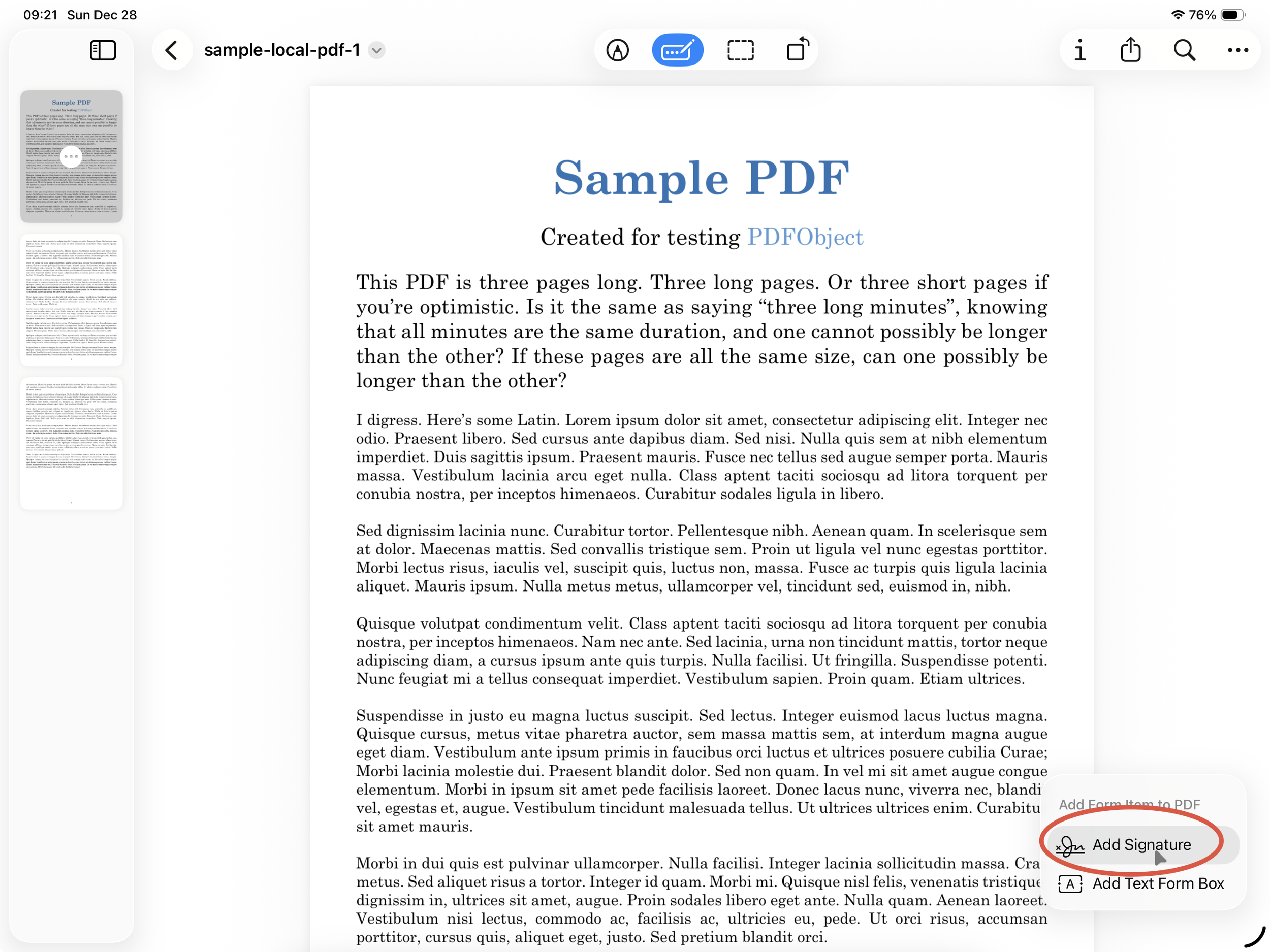
Adding signatures may be the one of the most used features for any PDF editor. It can be extremely frustrating in many apps, especially when you want to do it quickly and return a document to someone. Preview makes this easy.

Fill Forms and Add Text
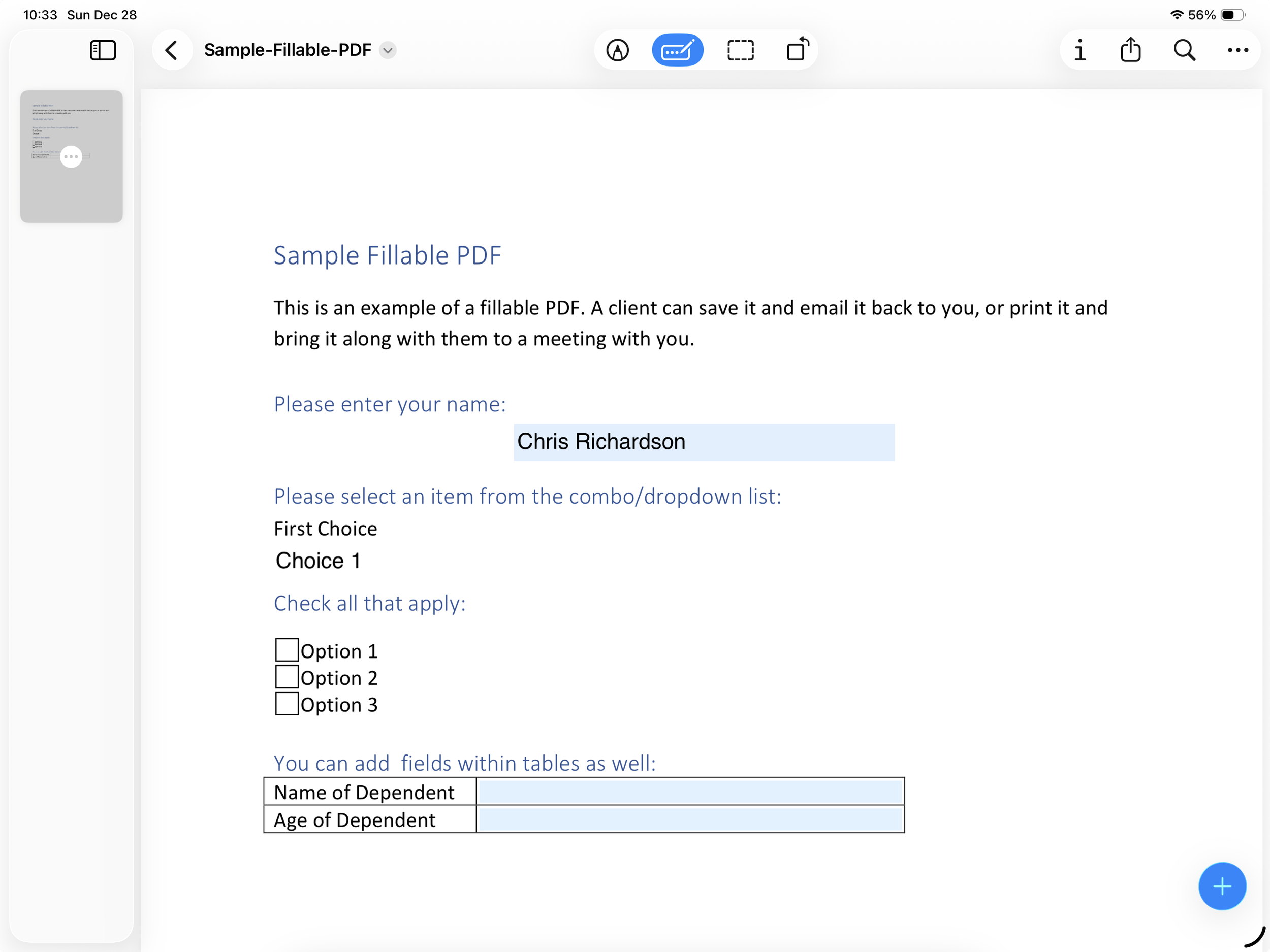
Often you will come across PDF forms that need to be filled out. When set up properly from the originator, Preview will be able to identify the direct form fields making it easy to complete your document. In the example below, the form fields are highlighted in blue when Preview recognizes the properly formatted form for text entry. You can select the box you want to fill in and then type directly into it.
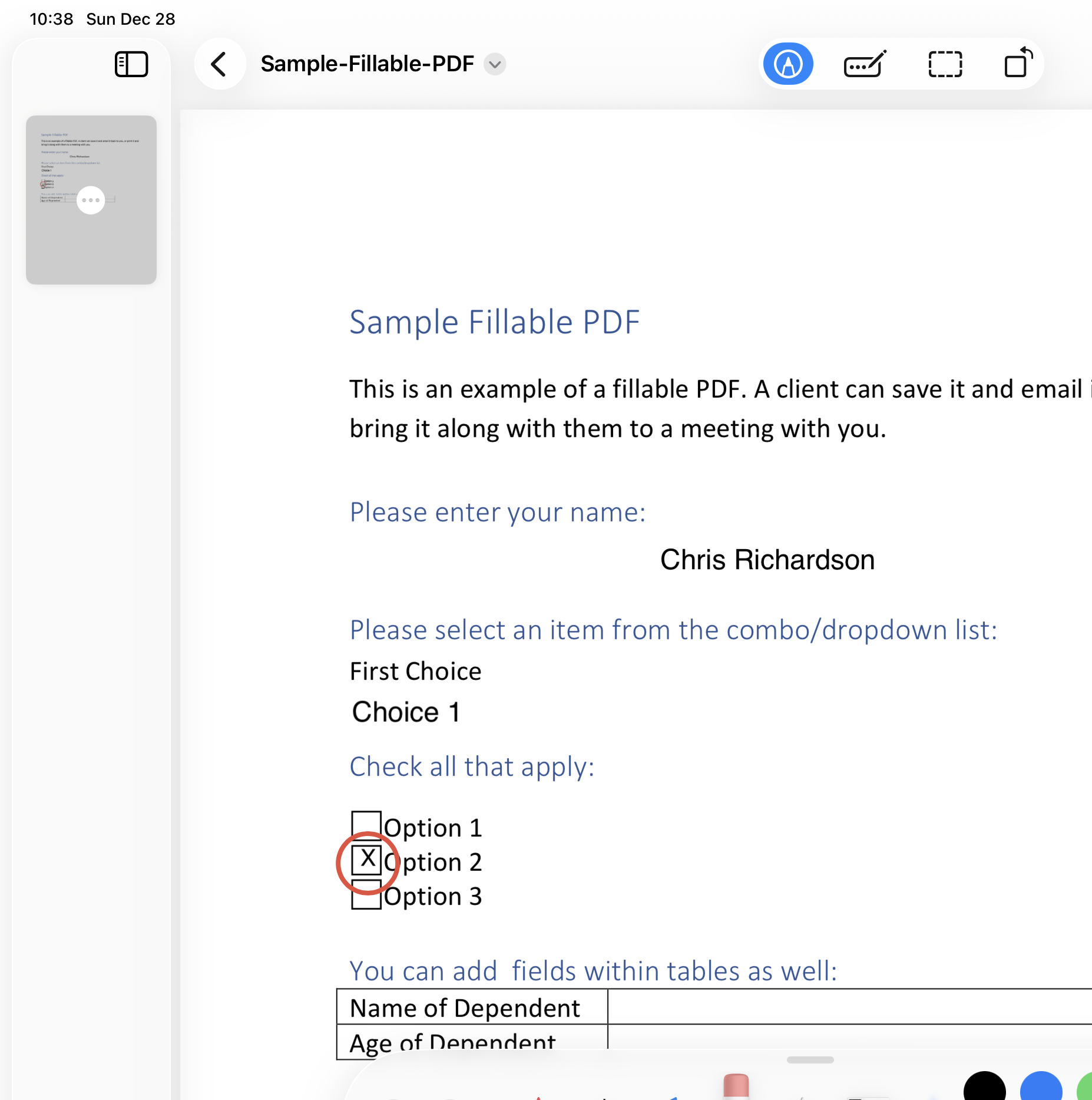
Other areas may not be set up for direct entry. Notice on this example form, the check boxes are not highlighted blue; those cannot be directly typed into. That would be where using a text box that you add comes in handy so you can still complete the full document digitally and within the Preview app.
Highlight
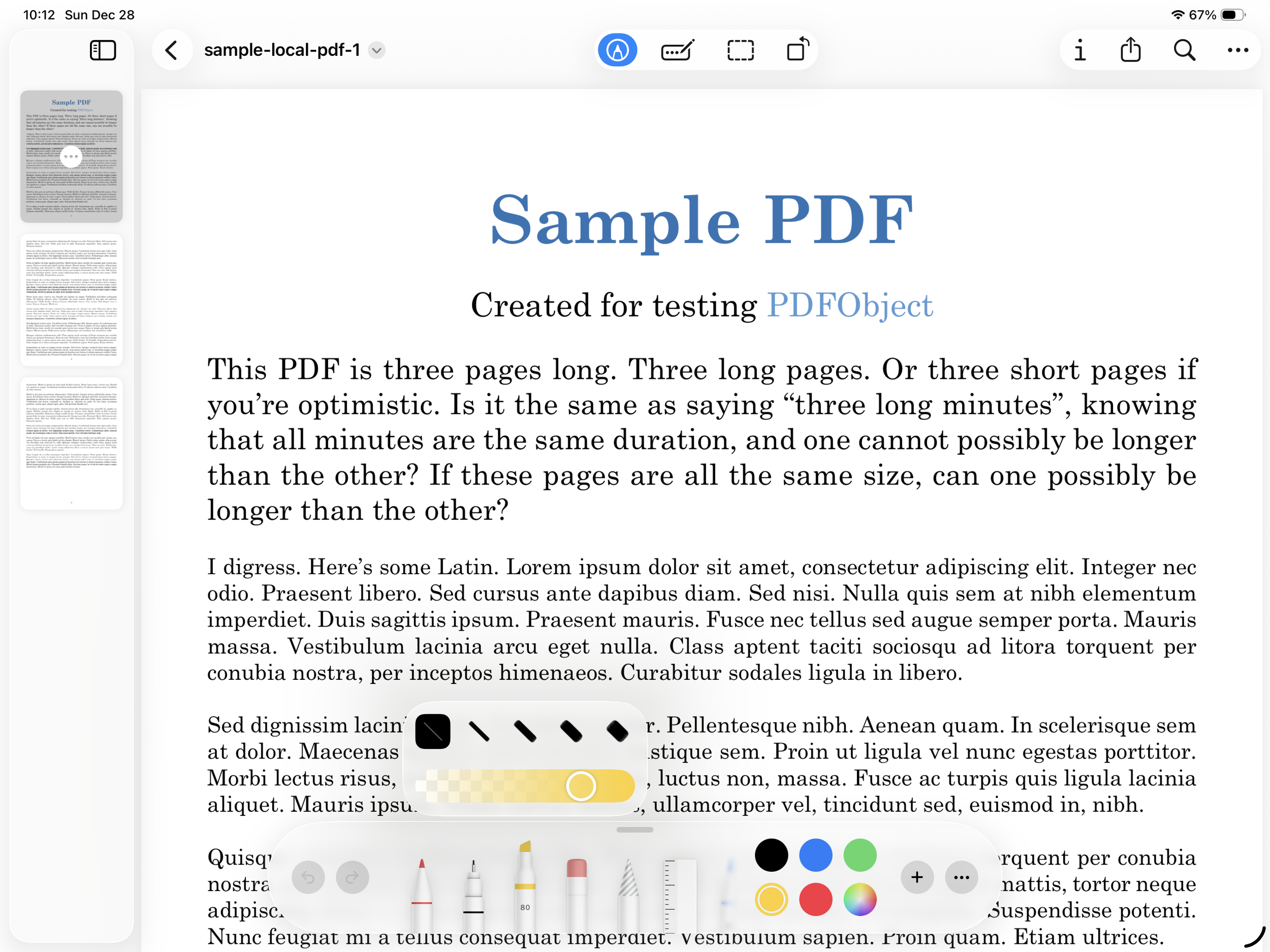
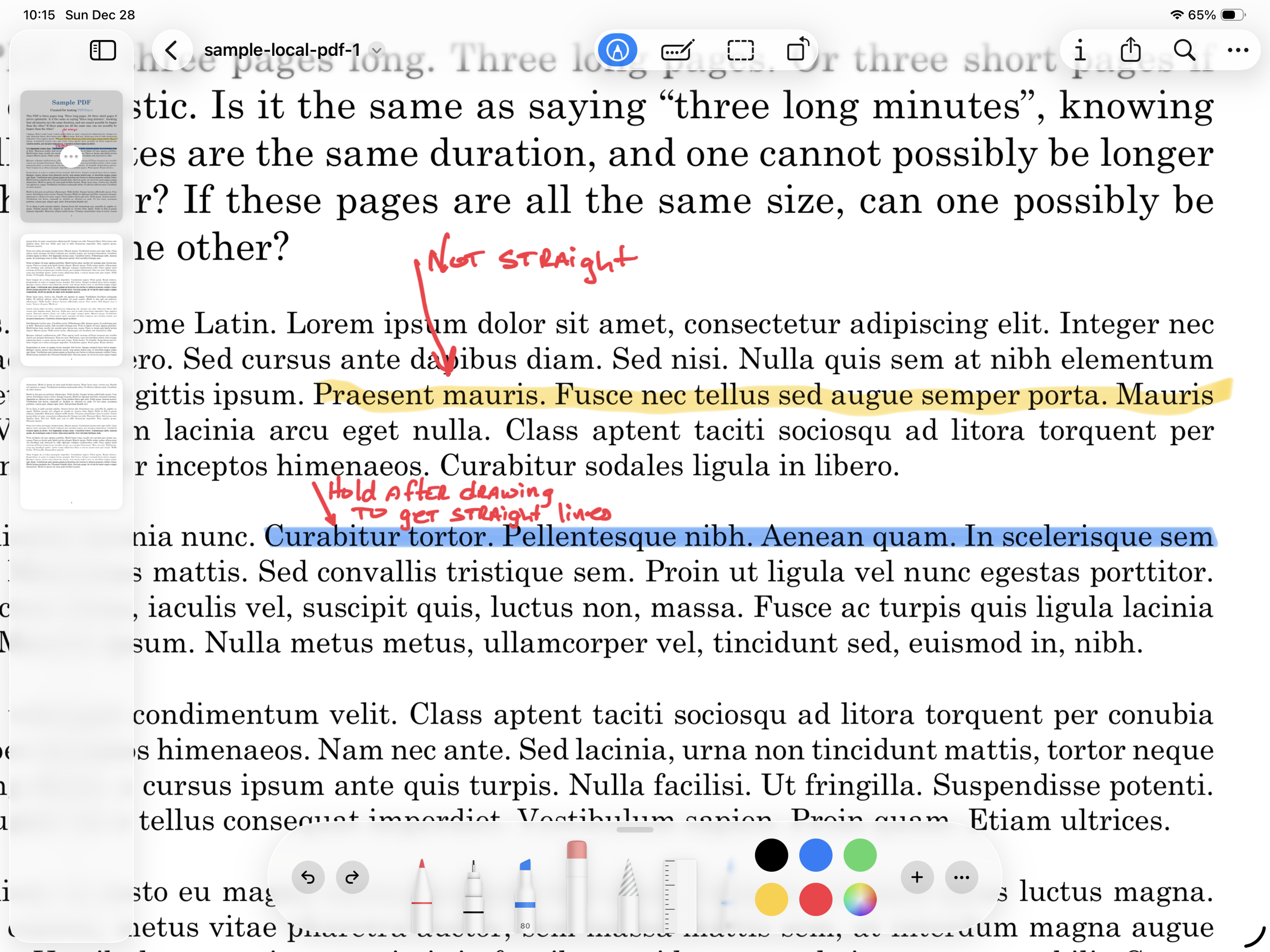
Sometimes the most important thing you can do with a PDF is highlight the key points and then move on. It is one function I always need when working with PDFs. Preview makes highlighting easy. You have a full suite of highlighter colors with Preview, so if you need to use different colors for different reasons, you have that option readily available.
This is where the Apple Pencil really shines. It give you more precise control for placing your highlights, and feels like working with a real document. If drawing a straight line is a challenge for you (like it is for me), just pause, while holding the pencil on the screen at the end of your line, and it will automatically get straightened out on the page. Very handy.
Edit Documents
One limitation of Preview is the ability to change the actual text within a PDF. Applications like PDF Expert, Adobe Acrobat, or NitroPDF allow you to select and edit the text within the document, much like you are working in a word processor app. Preview does not have that option. However, you can add a text box to a PDF and add new text or notes via typing versus writing with the pencil. This is completed by selecting the same options as adding a new signature. Simply choose the ‘Add Text Box’ feature instead. You can place the text box where ever you need to, then adjust the size and font like you would for any text box in a document editor. This can be very handy for the forms that are not set up for direct text entry.
Scan Documents
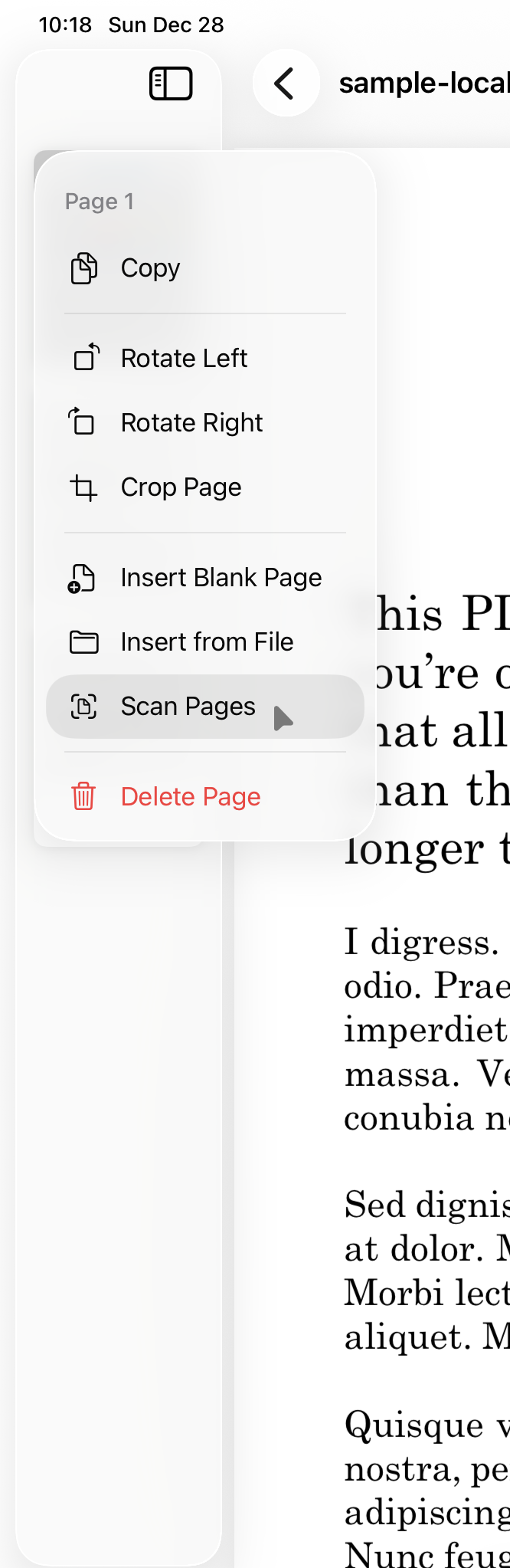
Preview also incorporates the iPad’s (or iPhone’s) ability to scan directly into applications. If you have a paper document you need to convert to a PDF and then mark up, Preview makes this easy. You can select the ‘Scan Page’ function from the left side bar where the document thumbnails appear. Click the ellipsis (3 dot menu) and then. Select ‘Scan Pages’ to add new pages to your document by scanning in from your iPad’s camera. You can also use the top menu options to get to the ‘Scan Page’ function. Follow File > Scan Pages to get to this in the top menu. This feature works very well and then you can immediately begin annotating your new pages.
Wrap Up
As you can see, Apple Preview is a full function, easy to use PDF application that is now (as it should be) built right into your iPhone or iPad. This continues to bring parity across all the Apple platforms. The features and functions of Preview on the mobile devices is now nearly the same as the Preview application on the Mac. This is another way I believe Apple is unifying the platforms to be easier for people to use regardless of which Apple device they are working on.
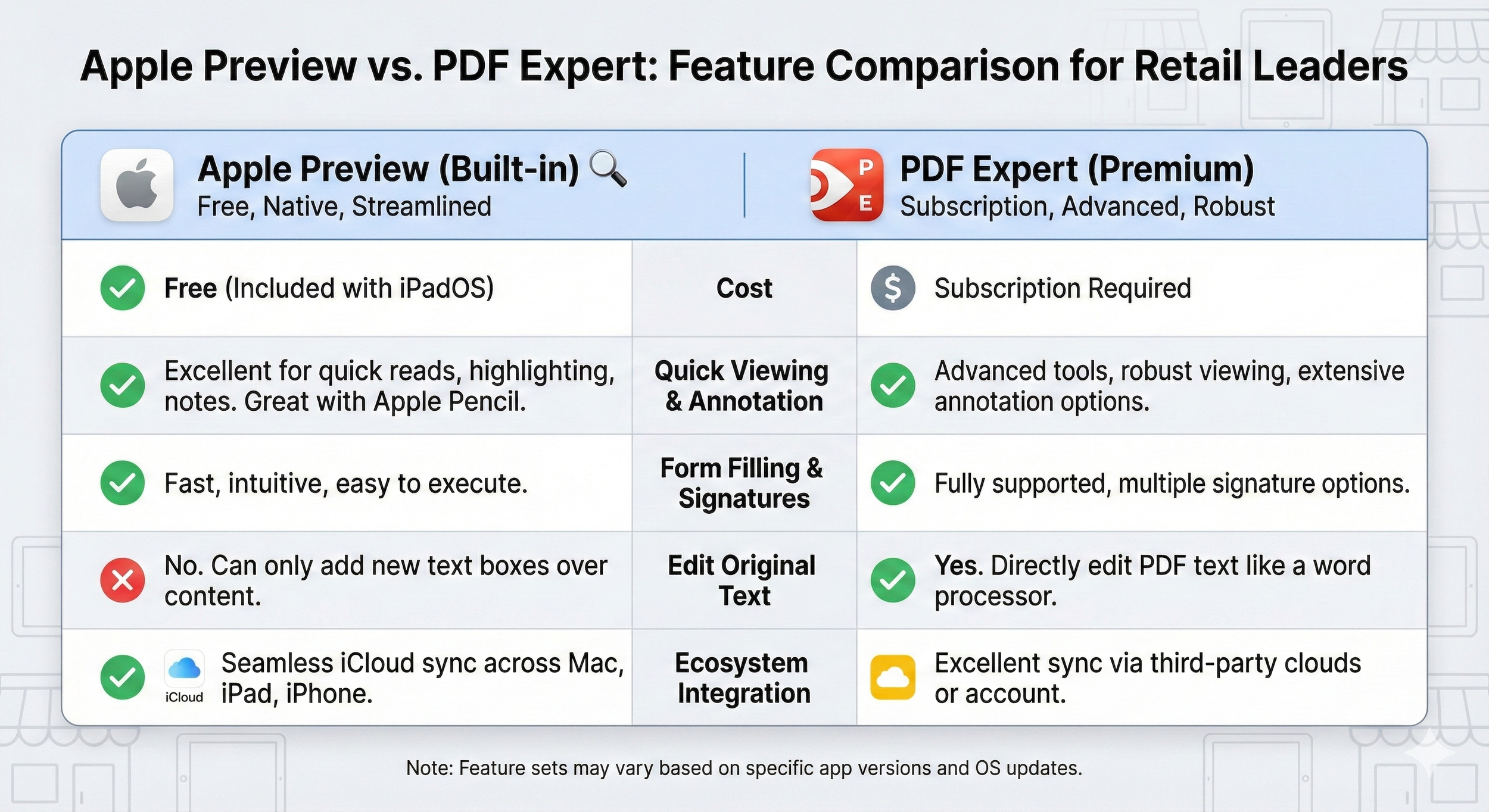
Preview is a great tool for anyone that works with forms or PDFs regularly, and it is a nice app to have even if you don’t need it often. Having the ability to fill in PDF forms or sign documents makes it a useful tool for nearly everyone at some point. This was both a welcomed and well done addition to the iOS operating system and option as a stand alone application for the mobile platforms.
How do you use PDF editors in your work or life?
Get leadership tips and new articles you can use directly to your inbox. Join the thousands of other leaders continuing your leadership development journey with **Effective Retail Leader.com.**
DISCLAIMER: I participate in the Amazon Services LLC Associates Program, an affiliate advertising program designed to provide a means for me to earn fees by linking to Amazon.com and affiliated sites. Other links to third-party products and services may also be affiliate links.